參考文章
https://blog.csdn.net/qq_57539839/article/details/148537457
原文寫得很好,為防止連結失效,我這邊再簡單記錄一下做法
總之就是在 jetson orin nx 上插入了一個 usb 裝置
用 lsusb 看得到但是 /dev/ttyUSB 那邊沒有出現
其實就是 jetson 這個客製化的 ubuntu 沒有編譯這個 driver
sudo dmesg | grep tty
參考文章
https://blog.csdn.net/qq_57539839/article/details/148537457
原文寫得很好,為防止連結失效,我這邊再簡單記錄一下做法
總之就是在 jetson orin nx 上插入了一個 usb 裝置
用 lsusb 看得到但是 /dev/ttyUSB 那邊沒有出現
其實就是 jetson 這個客製化的 ubuntu 沒有編譯這個 driver
sudo dmesg | grep tty
參考文章
https://blog.csdn.net/qq_41008154/article/details/152210410
原文寫得很好,為防止連結失效,我這邊再簡單記錄一下做法
總之,在 Jetson Orin NX 上的 ubuntu 22.04 是客制化過的
所以缺少了一些 driver ,我們可以自己編譯產生出來
zcat /proc/config.gz | grep -i 'pl2303'
head -n 1 /etc/nv_tegra_release
所以我們需要的是 36.4.3 版本
可以在以下網址下載
https://developer.nvidia.com/embedded/jetson-linux-archive
點進去後下載其中的 Driver Package (BSP) Sources (下圖中第四列的位置)
下載完後解壓縮到你想放置的位置
cd 到該目錄
然後執行
make defconfig
接著執行以下命令進行 .config 的配置 (記得終端機要放得夠大,不然可能會報錯)
make nconfig
按下 F8 搜索 LOCALVERSION
按 F9 保存後退出,此時文件目錄下的 .config 文件已經修改好了
然後執行以下命令
# 產生模組相關文件 make modules_prepare # 編譯 exFAT make M=fs/exfat modules # 編譯 pl2303 make M=drivers/usb/serial modules # 確認是否有 exfat 這個資料夾,若沒有則手動建立 sudo mkdir /lib/modules/$(uname -r)/kernel/fs/exfat sudo cp fs/exfat/exfat.ko /lib/modules/$(uname -r)/kernel/fs/exfat sudo cp drivers/usb/serial/pl2303.ko /lib/modules/$(uname -r)/kernel/drivers/usb/serial sudo depmod -a sudo modprobe exfat sudo modprobe pl2303
用以下指令來查看是否成功
lsmod | grep -E "2303|exfat"
這篇文章我們要把一個 shell script 放進 Docker image 裡面
廢話不多說
首先要開 terminal 然後 cd 到 .sh 的位置
就假設這個 .sh 的位置是 /home/aaa/bbb/ccc/xxx.sh
所以就 cd /home/aaa/bbb/ccc
1. 輸入 sudo vim Dockerfile
進入 vim 後先按 i
然後輸入或貼上以下內容
# Use a base image, such as Ubuntu
FROM ubuntu:20.04
# Set environment variables to avoid prompts during installation
ENV DEBIAN_FRONTEND=noninteractive
# Install necessary dependencies (adjust based on your script's needs)
RUN apt update && apt install -y \
bash \
libgl1-mesa-glx \
&& apt clean
# Copy your script into the container
COPY xxx.sh /home/aaa/bbb/ccc/xxx.sh
COPY folder /home/aaa/bbb/ccc/folder
# Make the script executable
RUN chmod +x /home/aaa/bbb/ccc/xxx.sh
# Set the working directory (optional, for context)
WORKDIR /home/aaa/bbb/ccc/latest
# Set the script to run when the container starts
CMD ["./xxx.sh"]註1: 在實際執行時我的 .sh 跳出 error 說缺少 libGL.so.1
所以我必須另外安裝 libgl1-mesa-glx
註2: 如果要複製資料夾就按照黃色字的寫法就可以了
註3. COPY到 container 裡面時其實不必按照外面的路徑
我選用一樣的路徑是個人覺得這樣比較簡單明瞭
2. 建立 image
docker build -t your-image-name .注意最後的那個 "." 不能省略,表示當前目錄的意思
3. 執行 image
docker run -d --name your-container-name your-image-name4. 除錯
如果程式跑起來不如預期
我們可以使用以下指令看到 container 執行時的 ternimal output
sudo docker logs your-container-name5. 網路 ip
通常我們的內網 ip 會是 192.168.0.xx 這樣的數字
但是 container 內部的 ip 是 172.17.0.2
我的程式會先查看自己的 ip 多少,然後跟別台主機說 ip 是什麼
結果報出去的這個 172.17.0.2 是外面連不進來的
以下講幾種 chatgpt 提供的解決方法
(a) Pass the Host IP as an Environment Variable
a-1
docker run -d --name container-name -p host_ip:host_port:container_port -e HOST_IP=192.168.0.xx image-namea-2
host_ip = os.getenv("HOST_IP", "127.0.0.1") # Example in Python但是我不想動到 python 那邊的 code
所以沒用這方法
(b) Fetch the Host IP Dynamically in the Container
import socket
import os
def get_host_ip():
try:
# Get the default gateway IP
gateway_ip = os.popen("ip route | grep default | awk '{print $3}'").read().strip()
return gateway_ip
except Exception as e:
return "127.0.0.1"
host_ip = get_host_ip()這也是要改 python 所以跳過
(c) Use host Network Mode
docker run -d --name container-name --network=host image-name用這方法啟動 container 就成功的解決我的問題
後面其實還提到了 Use a Reverse Proxy, Modify Client-Side Logic
然後還講到
總之,大概記錄一下遇到的問題,就講到這
大語言模型教得很好,真的不必再到處 google 了
如何安裝 Docker / Container 這邊就簡單講一下
也許以後的方法又不一樣
1. 更新現有套件
sudo apt update && sudo apt upgrade -y2. 安裝相關套件
sudo apt install -y apt-transport-https ca-certificates curl software-properties-common
curl -fsSL https://download.docker.com/linux/ubuntu/gpg | sudo gpg --dearmor -o /usr/share/keyrings/docker-archive-keyring.gpg
echo "deb [arch=$(dpkg --print-architecture) signed-by=/usr/share/keyrings/docker-archive-keyring.gpg] https://download.docker.com/linux/ubuntu $(lsb_release -cs) stable" | sudo tee /etc/apt/sources.list.d/docker.list > /dev/null
sudo apt update
sudo apt install -y docker-ce docker-ce-cli containerd.io6. 啟用 Docker
sudo systemctl enable docker sudo systemctl start docker
7. 查看版本
sudo docker --version
sudo docker compose version8. 運行 hello world 容器
sudo docker run hello-world如果成功的話應該會看到一段 Hello from Docker 訊息
這邊就不貼了
然後以下是幾個常用指令
(a) 列出所有 image
sudo docker images(b) 執行 image
sudo docker run -d --name container-name image-nameimages 就是躺在 disk 裡面的東西
使用 docker run 它就會載入變成 container
這個 container-name 不能重複
至於怎麼製作 image 我們在下一篇文章再講
(c) 列出所有的 container
sudo docker ps -a列出正在運行的 container
sudo docker ps(d) 停止 container
sudo docker stop container-name(e) 執行 container
如果之前已經使用過 run 把 image 變成 container
那麼再次啟動時要使用 start
sudo docker start container-name(f) 移除 container
sudo docker rm container-name(g) 移除 image
sudo docker rmi image-name
上面提到的都是使用 "container name" & "image name"
但其實也可以用 "container id" & "image id"
差不多講到這
首先,當你有問題時,第一個該試的就是問大語言模型
大語言模型回答得很好
我這邊就簡單的講一下所需步驟
1. 建立 systemd service unit file
基本上這類型的檔案都會放在 /etc/systemd/system 這個目錄下
舉例來說,我的 script 叫做 my-script.sh
而我想要建立一個 my-script.service
我只需要打開 terminal 並執行
sudo nano /etc/systemd/system/my-script.service2. 在上面的指令打開檔案後,加入下列內容
[Unit]
Description=My Custom Script
After=network.target
[Service]
ExecStart=/bin/bash /path/to/your/script.sh
WorkingDirectory=/path/to/working/directory
StandardOutput=journal
StandardError=journal
Restart=on-failure
User=your_user_name
Group=your_group_name
[Install]
WantedBy=multi-user.target這邊補充一些項目
(a) ExecStart 其實可以寫成
ExecStart="/path/to/your/script.sh"然後以我自己的情況來說
(b) WorkingDirectory 我會寫成 sh 的 folder
也就是下面這樣
WorkingDirectory=/path/to/your(c) [Unit] 裡面的 After 如果不需要的話可以留空
After=直接刪掉也許也可以吧
(d) Restart 除了 "on-failure" 之外,還有 "always"
(e) 還有一個參數叫做 RestartSec
RestartSec=60應該是掛掉後 隔 60 秒再啟動
(f) User, Group 那些都可以刪掉沒差
sudo apt update
sudo apt install samba(g) Type 目前遇到都是寫 simple 就可以了
(h) StandardOutput, StandardError 用來輸出 logs (目前沒用過)
3. 重新讀取 service file
sudo systemctl daemon-reload4. 啟用 service
sudo systemctl enable my-script.service5. 開始 service
sudo systemctl start my-script.service6. 檢查 service 狀態
sudo systemctl status my-script.service7. 停止 service
sudo systemctl stop my-script.service註: 如果你的 sh 沒有執行權限,可以使用下列指令
chmod +x /path/to/your/script.sh大概就這樣吧,寫成 service 就可以很輕鬆地背景執行了
今天遇到的問題 : 兩台電腦如何存取同一個檔案
大概有想到幾個方法
1. ubuntu 開 share folder 給 windows
2. windows 開 share folder 給 unbuntu
3. 用 mongoDB 做 KV store
4. 用 amazonS3
最後採用 1 的作法,順便記錄一下
一開始先是上網 google 了一下
很快就找到一堆人講,試了 2 個都不 work,也不知道是缺啥
打開 chatgpt 問一下詳細多了
step1. 安裝 Samba(SMB)
sudo apt update
sudo apt install samba
step2. 編輯設定檔
sudo nano /etc/samba/smb.conf打開後 scroll 到最下面,然後加入下面這段
[SharedFolder]
path = /path/to/share
available = yes
valid users = your_username
read only = no
browsable = yes
public = yes
writable = yesstep3. 設定 Samba 密碼
sudo smbpasswd -a your_usernamestep4. 重啟 Samba 服務
sudo systemctl restart smbdstep5. 防火牆允許 Samba 服務
sudo ufw allow sambastep6. 完成,現在可以在File Explorer輸入下列位置就可以訪問了
\\ubuntu_ip_address\SharedFolder他會要你輸入 username & password 就是你在 step3 設置的
----------------------------------------------------------------------------------------------
如果我在 Ubuntu 有兩個資料夾要分享該怎麼做?
chatgpt 的回答如下,供參考
step1. 編輯設定檔
sudo nano /etc/samba/smb.conf打開後 scroll 到最下面,然後加入下面這段
[Folder1]
path = /home/username/folder1
available = yes
valid users = your_username
read only = no
browsable = yes
public = yes
writable = yes
[Folder2]
path = /home/username/folder2
available = yes
valid users = your_username
read only = no
browsable = yes
public = yes
writable = yes----------------------------------------------------------------------------------------------
如果要用 python 存取 shared folder 該怎麼做?
1. 使用 smbprotocol
pip install smbprotocol然後使用下面這段程式
import smbprotocol
from smbprotocol import smb2
from smbprotocol import client
# Initialize the SMB protocol (need to run this before anything else)
smbprotocol.ClientConfig(username="your_username", password="your_password", domain="WORKGROUP")
# Set the server address and share name
server = "192.168.1.100" # IP address of the Ubuntu machine with the shared folder
share = "Folder1" # The name of the share in smb.conf
file_path = "testfile.txt" # File inside the shared folder you want to access
# Connect to the share
client = smb2.SMB2(server, 445)
# Open the shared folder and access the file
with client.open(share, file_path, "rb") as file:
data = file.read() # Read the file content
print(data.decode()) # Print the content of the file
# You can also use client.list() to list files and directories
for item in client.list(share):
print(item)But
我想使用 json 來做存取,譬如下面這樣
with open(json_path, mode="w", encoding="utf-8") as f:
json.dump(json_data, f, indent=4, ensure_ascii=False)這時候 chatgpt 就建議使用 mount 的方式了
如果是用 windows 的話,打開 File Explorer 的首頁
按右鍵就會出現 Add a network location
在 windows 我可以用以下 path 存取
path = r"\\192.168.50.75\sharedfolder\bb.json"但這段字丟到 linux 上會有問題,用下面這樣打開 json 會報錯
with open(json_path, mode="r", encoding="utf-8") as f:
json_data = json.loads(f.read())因為 linux 上使用的是 "/" 而不是 "\"
所以要做
path = path.replace("\\", "/")大概是這樣
這兩天按照之前自己寫的步驟來裝 NV Driver
結果又有問題了
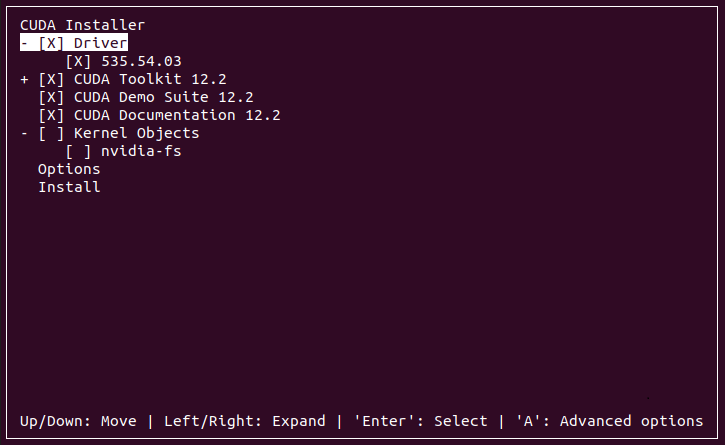
裝到 cuda 的時候,出現以下畫面
就是不行,順道提一下清除指令如下
sudo apt-get --purge remove nvidia-* <-- 新發現 sudo apt-get --purge remove "*nvidia*" <-- 新發現 sudo apt purge nvidia* -y sudo apt remove nvidia-* -y sudo rm /etc/apt/sources.list.d/cuda* sudo apt autoremove -y && sudo apt autoclean -y sudo rm -rf /usr/local/cuda*
另外記錄一下幾個可能有用的指令
* 查看驅動版本號
sudo dpkg --list | grep nvidia-*
-----------------------------------------------------------------------------------
簡單來說
之前安裝 driver 的部分是沒問題的
可以按照之前的說明安裝
但 driver 535 版本看起來是 CUDA 12.2
所以這次就改裝 12.2 吧
首先,到以下網址
https://developer.nvidia.com/cuda-12-2-0-download-archive
要裝在 ubuntu 20.04 上
所以選 linux -> x86_64 -> Ubuntu -> 20.04 -> runfile (local)
然後出現
| Installation Instructions: | |
|
照著做,執行 sh 後,他會說已偵測到有其他安裝程式之類的
強烈建議你不要繼續,別理他,選繼續
會出現以下畫面
這真的讓人搞不懂前面的X到底是要選還是不要選
答案是,有X是要選的
driver 我們剛才裝過了
註 : 這個 sh 也能安裝 driver,但似乎要 OS 進入 cmd 模式才行? 不確定是不是但太麻煩了
所以只要選 CUDA 就好
安裝完成後他會說找不到 driver 之類的
不用理他,我們可以用以下指令檢查
nvidia-smi <-- driver 有安裝才會 work
nvcc -V <-- cuda 有安裝才會 work
但是在使用 nvcc -V 之前,還得自行更新 library path 的位置
指令如下
# setup your paths echo 'export PATH=/usr/local/cuda-12.2/bin:$PATH' >> ~/.bashrc echo 'export LD_LIBRARY_PATH=/usr/local/cuda-12.2/lib64:$LD_LIBRARY_PATH' >> ~/.bashrc source ~/.bashrc sudo ldconfig
成功的話 nvcc -V 之後就會出現 cuda 的版號
失敗的話可以用最上面提到的清除指令重來
--------------------------------------------------------------------------------------
再來要安裝 cuDnn,先到以下網址
https://developer.nvidia.com/rdp/cudnn-archive
其實 cuDnn 已經到 9.x 了
但我是 RTX 3060 應該不用那麼新吧
總之我是選了 cuDNN v8.9.7 (December 5th, 2023), for CUDA 12.x 這個
NV 還要你註冊才給你下載,就註冊吧,下載完就像下面這樣
然後用以下指令安裝 cuDnnCUDNN_TAR_FILE="cudnn-linux-x86_64-8.9.7.29_cuda12-archive.tar.xz" sudo tar -xvf ${CUDNN_TAR_FILE} sudo mv cudnn-linux-x86_64-8.9.7.84_cuda12-archive cuda # copy the following files into the cuda toolkit directory. sudo cp -P cuda/include/cudnn.h /usr/local/cuda-12.2/include sudo cp -P cuda/lib/libcudnn* /usr/local/cuda-12.2/lib64/ sudo chmod a+r /usr/local/cuda-11.2/lib64/libcudnn*
這些都做完後
自己開個 pytorch 的專案來跑一下訓練
是有用 gpu 在跑的 !
以上做個紀錄
在上一篇文章中
我們已經安裝好一台 ubuntu 20.04 並安裝了 mySQL ,版本是 8.0.44
現在我們在另一台電腦(windows)上開發 flask
一個最簡單的 flask 寫法如下
from flask import Flask
app = Flask(__name__)
@app.route('/')
def hello():
return 'Welcome to My Watchlist!'
if __name__ == '__main__':
app.run(debug=True)
然後需要安裝 mySQL client 的套件,我選的套件是 mysql-connector-python
所以安裝方法就是 pip install mysql-connector-python
這裡有個坑,套件名稱千萬不要打成 mysql-connector
安裝好之後可以把程式改成下面這樣
from flask import Flask
import mysql.connector
from mysql.connector import Error
app = Flask(__name__)
# Establish the connection
def get_db_connection():
try:
conn = mysql.connector.connect(
user='mike',
password='pass',
host='192.168.0.31',
port=3306,
database='ocrDB',
autocommit=True
)
return conn
except Error as e:
print(f"Error: {e}")
return None
@app.route('/')
def hello():
conn = get_db_connection()
cursor = conn.cursor()
cursor.execute('SHOW TABLES')
tables = cursor.fetchall()
cursor.close()
conn.close()
return 'Welcome to My Watchlist!'
if __name__ == '__main__':
app.run(debug=True)
然後執行,觸發 def hello() 就會報錯了
詢問 chatgpt 後歸納成幾個原因
192.168.0.31.bind-address in the configuration to allow remote connections.1. 在 mySQL 安裝的 ubuntu 上輸入 sudo service mysql status 即可確認
2. 這邊 chatgpt 丟出了一句 sudo ufw allow 3306
$ ufw enable // 啟動防火牆,執行後開機也會自動啟動
$ ufw disable // 關閉防火牆
$ ufw status // 查看防火牆狀態
$ ufw status verbose // 查看防火牆詳細狀態
基本上就是把 3306 port 打開,這部分沒啥問題
3. 這邊 chatgpt 說
On the MySQL server, check the MySQL configuration file (my.cnf or my.ini), usually located in /etc/mysql/my.cnf or /etc/my.cnf (depending on the distribution). Ensure that the bind-address is set to either 0.0.0.0 or the specific server IP. Example:
bind-address = 0.0.0.0
沒問題,就按照它說的去改
在我的環境中,設定檔是位於 /etc/mysql/my.cnf
改好之後重新啟動 mySQL
sudo systemctl restart mysql
然後 mySQL 就掛了!
google 一下發現有人說你得寫成下面這樣才行
[mysqld]
bind-address = 0.0.0.0存檔,重啟 mySQL 就成功了
4. 在上一篇文章我們就有授權給 remote user 了
所以這部分沒問題
順道一提這個 database='ocrDB' 是我事先在 ubuntu 上用 mySQL command line 開好的
改到目前這樣就可以用 debug 模式看到 cursor 拿回來的 table 是空的 (因為還沒開 table)
沒有 error 出現,可以順利跑完
以上,做個初學者紀錄,這篇就講到這